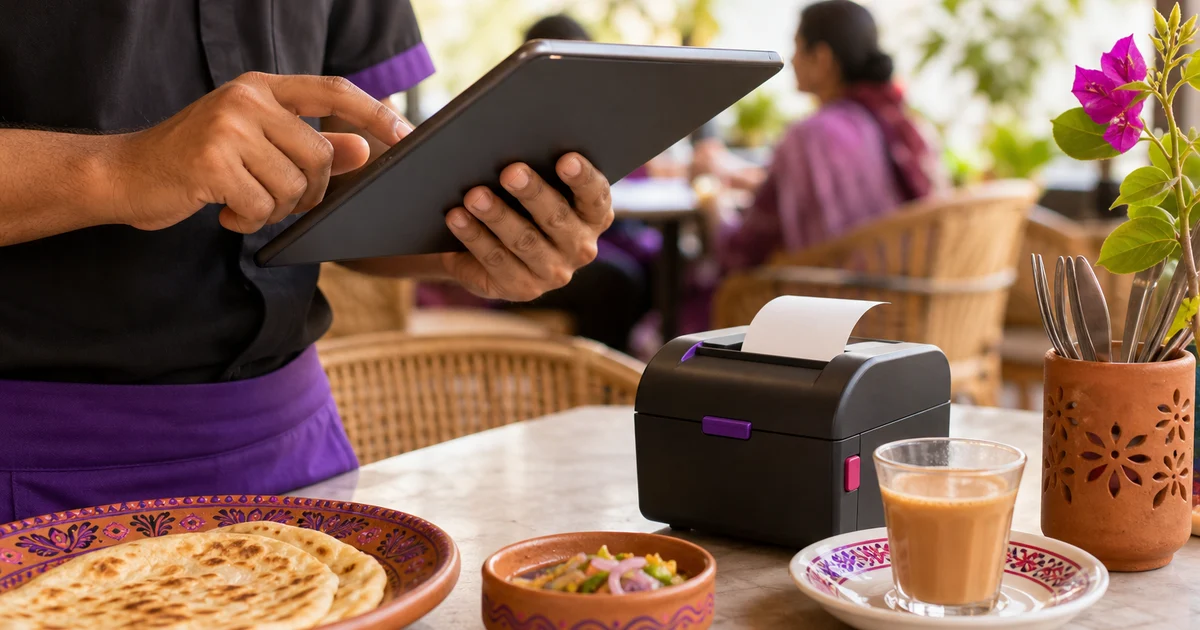
Windows POS Receipt Printer Setup: Test Before the Lunch Rush
A practical printer acceptance test for restaurant counters, including paper layout, Bangla text and an offline sale.

Last verified: 2026-09-07
A successful order is only half the counter test. If the receipt is clipped, unreadable or sent to the wrong printer, your staff still have a service problem.
Rosuii’s Windows POS includes receipt and label printing, including a temporary reference for locally queued sales. Compatibility depends on the actual Windows PC, driver and printer connection. Use this checklist before claiming that a particular printer works.
Start with the complete hardware combination
Write down the printer model, connection type, installed driver and Windows architecture. Two devices that both use thermal paper are not automatically interchangeable. Do not assume an existing browser setup behaves identically in the desktop app.
Install the correct driver from the manufacturer’s official source and print a Windows test page. If that fails, fix the operating-system or hardware connection first. A POS setting cannot repair a disconnected cable or an unavailable printer.
Check the receipt, not just the paper feed
Test the paper size used at your actual counter. Rosuii has receipt settings, but a width setting alone does not certify every printer or driver. Save a sample that the owner and cashier can both read.
- Restaurant and branch identity are correct.
- Item names, variations and quantities remain readable.
- Discounts, service charge and VAT lines match the configured test sale.
- Totals, paid amounts and remaining due are clear.
- Bangla characters render legibly where used.
- The order reference remains visible and is not clipped.
Keep receipts, kitchen tickets and labels distinct
A customer receipt explains the bill. A kitchen ticket communicates preparation work. A cup label identifies the item. Test each output you intend to use rather than accepting one receipt as proof of the whole printing workflow.
For a café, try the actual variation and add-on names on the label. For a kitchen, confirm where the work arrives and how staff identify it. An order visible on the cashier’s screen does not prove that another device or station has received it.
Print during a controlled internet outage
Prepare the device online, then disconnect and create an eligible test sale. Print using the locally connected setup and keep its temporary reference. Reconnect and match that sale to the server record.
This tests an internet outage, not loss of power or a disconnected printer. If a network printer relies on a router, changing the network can break printing even when the till has cached data. Test the exact failure you expect staff to handle.
Use a clear reprint and recovery procedure
When paper runs out, first establish whether the order already exists. Reprinting a receipt and creating another sale are different actions. Keep the original reference so the cashier does not accidentally ring up the same customer twice.
Record whether the issue is no output, missing text, wrong width or wrong destination. Share that description with the printer model and driver version when requesting support. Never include customer payment credentials in a troubleshooting screenshot.
What counts as a passed setup?
The setup passes when staff can produce readable output for the required workflows, recognise a temporary offline reference and reconcile the sale after reconnection. Keep the test sample and repeat relevant checks after changing the driver, paper or PC.
Do not buy a fleet of printers on an untested compatibility promise. Start with the actual model and a controlled demonstration.
How we calculated and verified this
Product details were checked against Rosuii’s Flutter client, Windows build configuration and offline queue code on 7 September 2026. These are source-code checks, not independent Windows hardware or printer certifications. No measured time savings, customer counts or universal hardware compatibility are claimed.
Open the Rosuii Windows download page and test with your own printer. Bring a sample receipt and your menu to the demo so the checks reflect real service.
Related guides
- Windows Restaurant POS in Bangladesh: From Download to First Shift
- Offline Restaurant Billing: An Internet-Outage Checklist
- Windows Desktop vs Browser POS: Which Fits Your Restaurant?
- Restaurant POS on Windows 7: Check Compatibility Before Buying
- Download the Rosuii app
- Current BDT plans and pricing
See this workflow in Rosuii: Check the Windows app and offline workflow
Sources checked
Last updated:
Frequently asked questions
Does every thermal printer work with Rosuii?
Can an offline order have a printed reference?
Should I create another sale when printing fails?
Run your restaurant on Rosuii
POS, menu, inventory, payroll and more — built for Bangladeshi restaurants.
Start free