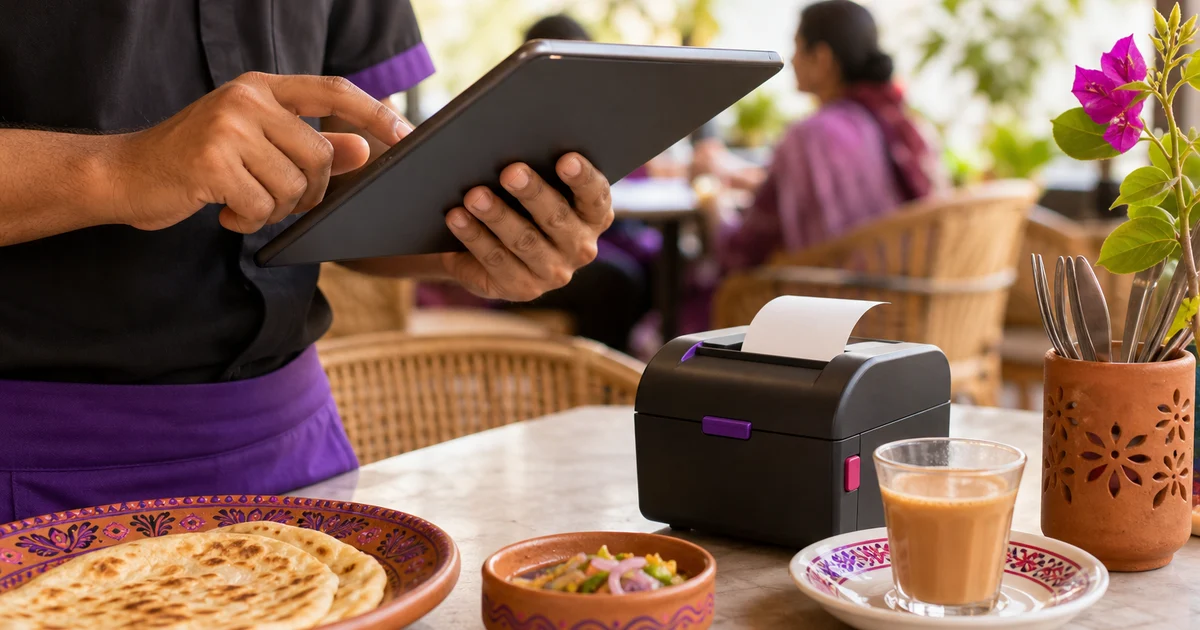
POS Printer Network Setup Guide: LAN, Static IP and Kitchen Routing
A vendor-neutral network setup and fault-isolation guide with an official Epson TM-T82III example, secure IP planning and restaurant print routing.
Last verified: 2026-08-30
A network POS printer needs more than an Ethernet cable. The printer must have power and link, a valid IP address on the restaurant network, a stable address plan, reachable print service, compatible driver or protocol, correct POS destination and a job format the device understands. Testing in that order prevents repeated driver reinstallations when the real problem is an IP conflict or wrong VLAN.
This guide is vendor-neutral, with Epson TM-T82III documentation used only as a worked example because its official technical reference publishes Ethernet setup and network parameters. Rongta, Xprinter, Star, Bixolon and other models can use different utilities, ports, emulation and reset steps. Always open the exact model and interface manual before changing a live restaurant printer.
Network setup plan
Give every printer a physical label with branch, station, model, asset ID and support contact, but do not print an administrator password. Keep IP and MAC records in a controlled configuration register. Kitchen and cashier printers can look identical while serving different routes; the label prevents a reset or replacement on the wrong device.
Draw a simple map: internet router or firewall, switch or access point, POS device, printer and any local print service. Internet access is not always required for local printing, but the local network path must work. A cloud POS can also depend on browser, agent or gateway components specified by the vendor.
| Field | Cashier printer | Kitchen printer | Record |
|---|---|---|---|
| Model/interface | ____ | ____ | Label/manual |
| Connection | Ethernet/Wi-Fi | Ethernet/Wi-Fi | Network diagram |
| MAC address | ____ | ____ | Router/printer page |
| Assigned IP | ____ | ____ | IP register |
| Subnet/gateway | ____ | ____ | Network plan |
| Reservation/static method | ____ | ____ | Router/printer config |
| Protocol/port/driver | ____ | ____ | POS config |
| Print role | Customer receipt | Kitchen/KOT station | Routing matrix |
| Test date/owner | ____ | ____ | Change log |
Choose DHCP reservation or a static address
A printer address must remain stable. One approach is a DHCP reservation: the router gives the same address to the printer's MAC. Another is a manual static address configured on the printer, outside or safely coordinated with the DHCP pool. The network administrator chooses the method used by the restaurant.
Do not copy an address from a YouTube video. Confirm network range, subnet mask, gateway, occupied addresses and any VLAN. Duplicate IP addresses create intermittent failures that can look like printer faults. Record the old and new configuration before applying a change.
Epson TM-T82III example—scope it correctly
The current Epson TM-T82III technical reference lists network parameters and explains Ethernet configuration using the TM-T82III Utility or EpsonNet Config. It also shows a default manual IP value for the documented model and notes that acquisition defaults can vary. Treat that as Epson-specific reference, not a universal POS-printer address.
The guide explains that a browser can open the printer's IP for EpsonNet Config Web and that credentials differ by firmware. Check the self-test, nameplate and current manual. Change default credentials where supported and do not expose the management page outside the controlled network.
Sources for this section: Epson TM-T82III Technical Reference Guide
Seven-layer setup and test sequence
Stop at the first failed layer. If the device has no network link, changing POS routing cannot help. If a vendor utility prints successfully but the POS does not, network connectivity is probably working and the investigation moves to POS destination, permissions, agent or job format.
Preserve one known-good test: self-test page, network page, vendor test and actual POS ticket. Note which test passed and at what time. This prevents one technician from repeating hardware resets after another already proved the printer reachable.
| Layer | Test | Pass means | If failed |
|---|---|---|---|
| 1. Power | Status lights/self-test | Printer starts without hardware error | Paper, cover, power, manual error code |
| 2. Link | Ethernet/Wi-Fi indication | Physical/wireless association | Cable, switch port, SSID, signal |
| 3. Address | Print/config page | Valid unique IP/subnet | DHCP, static, duplicate check |
| 4. Reachability | Ping or management page where supported | POS network reaches printer | VLAN, firewall, route |
| 5. Print service | Vendor utility/OS test | Driver/protocol sends output | Port, driver, queue |
| 6. POS mapping | Test cashier/kitchen role | Correct station receives job | Destination/routing |
| 7. Content | Real sample with Bangla/English | Layout/code page acceptable | Emulation, font, encoding |
Driver, raw TCP and ESC/POS are not the same thing
Some systems print through an operating-system driver and queue. Others send commands to a network socket, use a vendor SDK or rely on a local bridge. The configured port number and protocol must come from the printer and POS vendor documentation. Do not assume one raw port works for every device.
ESC/POS is Epson's command system for supported printers, and Epson publishes a model-specific command reference. A compatible-looking printer may implement only part of a command set or a different emulation. Successful plain text does not prove logo, cutter, cash drawer, buzzer or Bangla output will work.
Sources for this section: Epson ESC/POS command reference · Epson TM-T82III supported commands
Restaurant print-routing matrix
Map menu categories or stations deliberately. A beverage should not print in the hot kitchen merely because it was on the same order. Document whether modifiers, quantity, table, customer note and delivery reference appear. Test one mixed order and one cancelled or changed item.
Prevent duplicate KOTs during failover. If staff resend a job after a delay, mark the reprint or check the order screen first. A backup route should have a clear activation and restoration owner.
| Order source | Receipt printer | Kitchen station | Copies | Fallback |
|---|---|---|---|---|
| Dine-in | Cashier/front | Kitchen by item category | ____ | Named backup |
| Takeaway | Cashier/front | Kitchen/packing | ____ | Named backup |
| Own online | Packing if required | Kitchen/packing | ____ | Order screen/manual |
| Marketplace | Per workflow | Kitchen/packing | ____ | Marketplace device/order screen |
| Bar/beverage | Per workflow | Bar station | ____ | Kitchen/front backup |
Bangla text, code pages and image rendering
Many receipt printers are optimized for fixed code pages and may not natively shape Bangla text. The POS may render Bangla as an image, use a supported font path or fall back to English transliteration. Test the exact printer, firmware, driver and POS before promising bilingual tickets.
Use a real sample containing Bangla dish names, Latin text, BDT symbol, numbers, modifiers and long notes. Check cut-off, wrapping and print speed. A vendor command table can show supported code pages, but visible output in the restaurant workflow is the acceptance test.
Network and credential security
A receipt printer can expose order or customer information and can be abused to disrupt service. Segment guest and operational networks, restrict management access and avoid cloud remote-access shortcuts not approved by the vendor or network administrator.
Schedule changes outside rush hours. Before firmware, reset or factory-default action, capture settings and confirm support. A factory reset is destructive to configuration and can take every mapped POS station offline.
- Change supported default administrator credentials
- Keep printer management on the trusted restaurant network
- Do not port-forward a printer to the public internet
- Limit who can edit router, printer and POS destinations
- Back up the configuration or record every setting
- Update firmware only under vendor guidance and a rollback window
- Separate guest Wi-Fi from operational devices
- Review inactive devices and unknown MAC addresses
Troubleshooting decision table
Change one variable at a time and record the result. Rebooting router, switch, POS and printer together may restore service but destroys evidence of the failing layer. Use a controlled maintenance window if a core network device must restart.
After repair, test cashier receipt, kitchen ticket, long item name, modifier, cancellation/reprint and all active order channels. Monitor through one real service period before closing the incident.
| Symptom | First checks | Likely layer |
|---|---|---|
| Offline everywhere | Power, link, IP page | Hardware/address |
| One POS cannot print | POS subnet, queue, permission | Client/routing |
| Wrong printer prints | Destination and station map | POS mapping |
| Intermittent loss | Duplicate IP, Wi-Fi signal, cable, DHCP lease | Network stability |
| Garbled characters | Driver, emulation, code page, rendering | Content |
| Duplicate ticket | Retry logic, queue, staff resend | Application/process |
| Test prints but orders do not | POS agent, destination, category route | Application mapping |
How we calculated and verified this
The guide uses a vendor-neutral seven-layer test—power, link, IP, reachability, port/driver, POS mapping and job content—then uses Epson TM-T82III documentation as a clearly labelled worked example. Default addresses, tools and credentials vary by model and firmware; only the model manual is authoritative for a specific printer.
No claim is made that every LAN printer uses the Epson defaults or ESC/POS command set. The article avoids publishing reusable passwords as instructions and tells operators to change defaults, segment access and involve the network or POS vendor.
A stable printer setup comes from address planning, a documented network path, model-correct driver or protocol, deliberate station routing and layered testing. The printer's self-test proves hardware; only a real POS order proves the full restaurant workflow.
Use the Epson example only for the documented TM-T82III. For another model, replace every default, utility, port and command assumption with its official manual and your POS vendor's supported configuration.
Related guides
- Restaurant Thermal Printer Setup
- USB vs Bluetooth vs LAN POS Printer
- POS Printer Troubleshooting Guide
- Kitchen Printer vs Receipt Printer
See this workflow in Rosuii: Configure restaurant order and kitchen workflows in Rosuii after printer connectivity is tested
Sources checked
Last updated:
Frequently asked questions
Should a LAN POS printer use a static IP?
Why does a POS printer IP address keep changing?
Which port does a network receipt printer use?
Why can I ping the printer but the POS cannot print?
Will every thermal printer print Bangla?
Run your restaurant on Rosuii
POS, menu, inventory, payroll and more — built for Bangladeshi restaurants.
Start free